Support
How Can We Help?
Answers to the most common questions about SUBSpeak. Search below or browse by category.
No results for .
Try different keywords or browse all questions
below.
Getting Started
SUBSpeak is a browser-based video player designed to make subtitles more
accessible. It lets you load videos, add subtitles, and convert those subtitles into speech using
Text-to-Speech (TTS). It's especially useful if reading subtitles is difficult or tiring.
Using SUBSpeak is simple:
1. Open the app
2. Add your video — use the Add Video button for a local file, or paste a streaming URL into the input box and hit Play
3. Add a subtitle file, or use auto-detection for embedded subtitles
4. Press Play and enjoy
You can also adjust TTS, size, delay, and other settings at any time.
1. Open the app
2. Add your video — use the Add Video button for a local file, or paste a streaming URL into the input box and hit Play
3. Add a subtitle file, or use auto-detection for embedded subtitles
4. Press Play and enjoy
You can also adjust TTS, size, delay, and other settings at any time.
Yes, but experience may vary. Modern mobile browsers support most features, but
TTS and performance depend on your device and browser. For best results, use Chrome on Android or
Safari on iOS.
Chrome and Edge give the best experience — they have the most complete
SpeechSynthesis and WebAssembly support. Firefox works with minor voice selection limitations. Safari
is fine for basic use. Avoid outdated browsers.
Yes. Settings like subtitle size, TTS speed, delay, and voice are saved locally
in your browser. Your preferences are there the next time you open SUBSpeak.
Use the Reset to Default button in the app. This restores
speed, font size, delay, and voice to their original default values.
Video Playback
Common supported formats include MP4, MKV, WebM, MOV, and Ogg. MP4 has the best
cross-browser support. Some formats may behave differently depending on your browser — if a file
doesn't work, try converting it to MP4.
Since SUBSpeak is browser-based, possible causes include an unsupported format,
a corrupted file, or a browser codec limitation. Try converting your video to MP4 for best results.
This is usually caused by a large file, a slow device, or a slow streaming
server. Try using local files instead of URLs, close background apps on low-end devices, or switch to
a lower resolution.
Yes, but performance depends on your device and browser. 4K videos may lag on
low-end devices. Use 1080p or lower if you experience issues.
Try playing the file in another video player first. If audio doesn't work there
either, the file is the issue. If it works elsewhere, the audio codec may not be supported by your
browser — converting to MP4 with AAC audio usually fixes this.
Streaming & URLs
Yes — paste any direct video URL (ending in .mp4, .webm, etc.) into the stream
input field and press Play. You can stream and enjoy videos without downloading them.
Supported: Direct video file links (.mp4, .webm etc.),
publicly accessible media URLs
Not supported: YouTube, Netflix, Prime Video, or any DRM-protected platform
Not supported: YouTube, Netflix, Prime Video, or any DRM-protected platform
No — these platforms protect their streams and don't allow direct video access.
But something interesting is on its way! 👀
Common reasons: the link isn't a direct file URL, it's expired or private, or
the server blocks cross-origin access (CORS). CORS is a browser security rule that SUBSpeak can't
override — it's enforced by the hosting server.
Only if the URL is valid and publicly accessible at the time of playback.
Authenticated or expired links won't work.
Subtitles
SUBSpeak supports SRT, VTT, WebVTT, ASS/SSA, MicroDVD (.sub), LRC, and plain
text files. SRT is recommended for best compatibility.
If your video has embedded subtitles, SUBSpeak detects and loads them
automatically. Otherwise, download from sites like OpenSubtitles.org, Subscene, or Subdl.com.
Something interesting for subtitle finding is also on its way! 👀
SUBSpeak auto-syncs in most cases. If there's a timing issue, use the
Delay slider: positive values make subtitles appear later, negative values make them
appear earlier.
The subtitle file was likely made for a different version of the video. Check
the file — if the issue persists, try loading a different subtitle file. Use the delay slider to
fine-tune timing.
This is an encoding issue that can occur in browser-based parsing. Fix: use SRT
files (recommended) — they have the most reliable encoding support across all browsers.
Use the Font Size slider in the controls panel. The setting
saves automatically.
Currently, one subtitle track at a time is supported for simplicity and
performance.
No. Load any subtitle file regardless of filename — there's no matching
requirement.
Subtitle Extraction
Yes. If the video contains supported subtitle tracks, SUBSpeak extracts them
for you in just one click — no separate subtitle file needed.
SUBSpeak runs in the browser and scans the video for embedded subtitle tracks —
large files take more time. The first extraction also loads the FFmpeg engine (~25 MB), which adds a
short initial delay. Later extractions in the same session are faster.
Try refreshing the page and running extraction again. If it still fails, the
video may have no embedded subtitle tracks, an unsupported subtitle format, or corrupted video tracks.
In most cases, if your video file includes embedded subtitles, SUBSpeak will automatically detect them
for you — no extra effort needed.
However, if subtitles aren't detected (yes, even smart tools have their off days), you can extract them manually using third-party tools.
We recommend:
• MKVExtract (GitHub tool) — reliable, a bit slower but works on mobile as well
• gMKVExtractGUI — faster, easier, user-friendly and works only on Windows
Once extracted, simply load the subtitle file into SUBSpeak and continue as usual.
 1
1
 2
2
 3
3
 4
4
 5
5
 6
6
 7
7
 8
8
 1
1
 2
2
 3
3
 4
4
However, if subtitles aren't detected (yes, even smart tools have their off days), you can extract them manually using third-party tools.
We recommend:
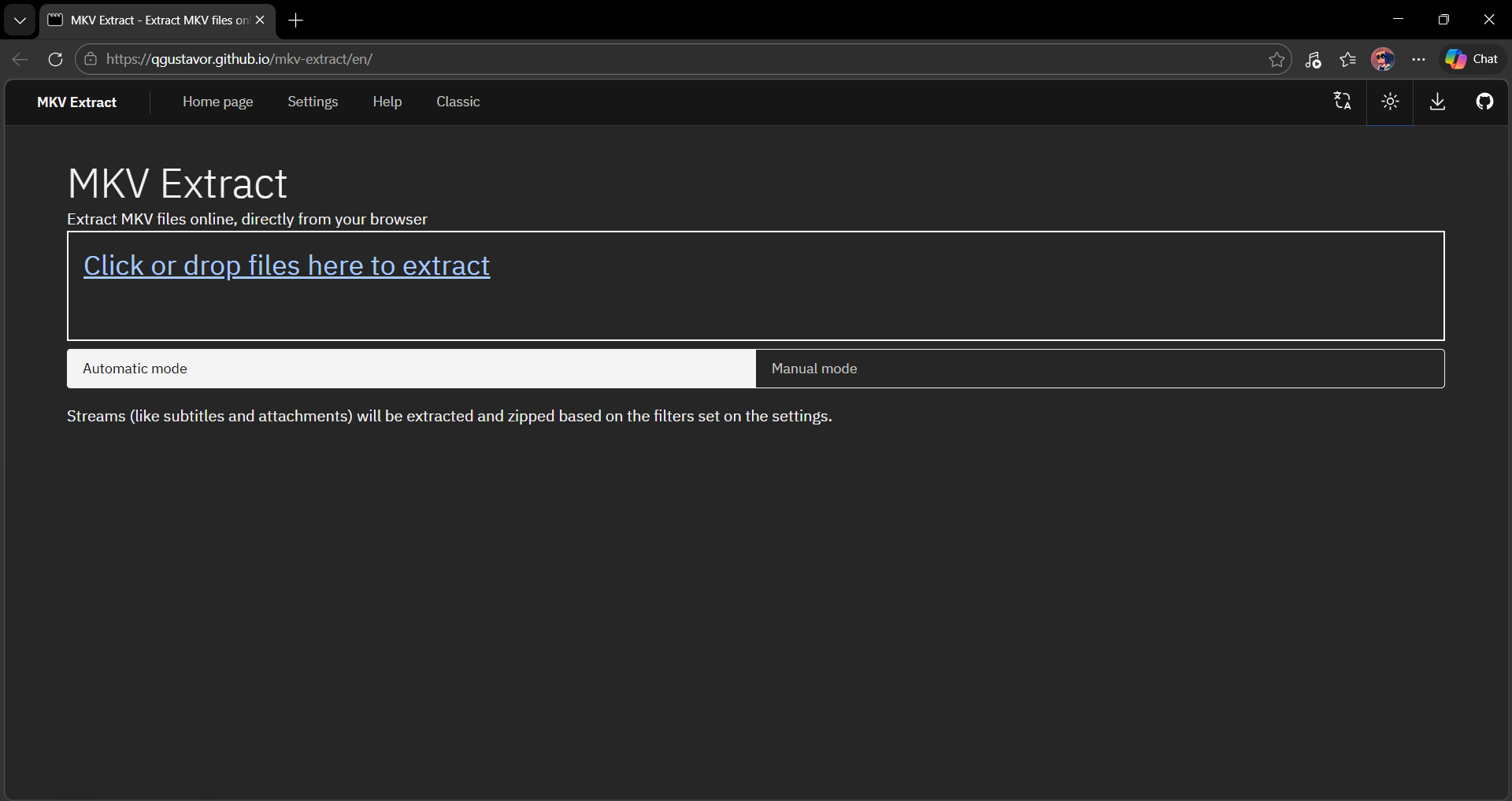
• MKVExtract (GitHub tool) — reliable, a bit slower but works on mobile as well
• gMKVExtractGUI — faster, easier, user-friendly and works only on Windows
Once extracted, simply load the subtitle file into SUBSpeak and continue as usual.
1
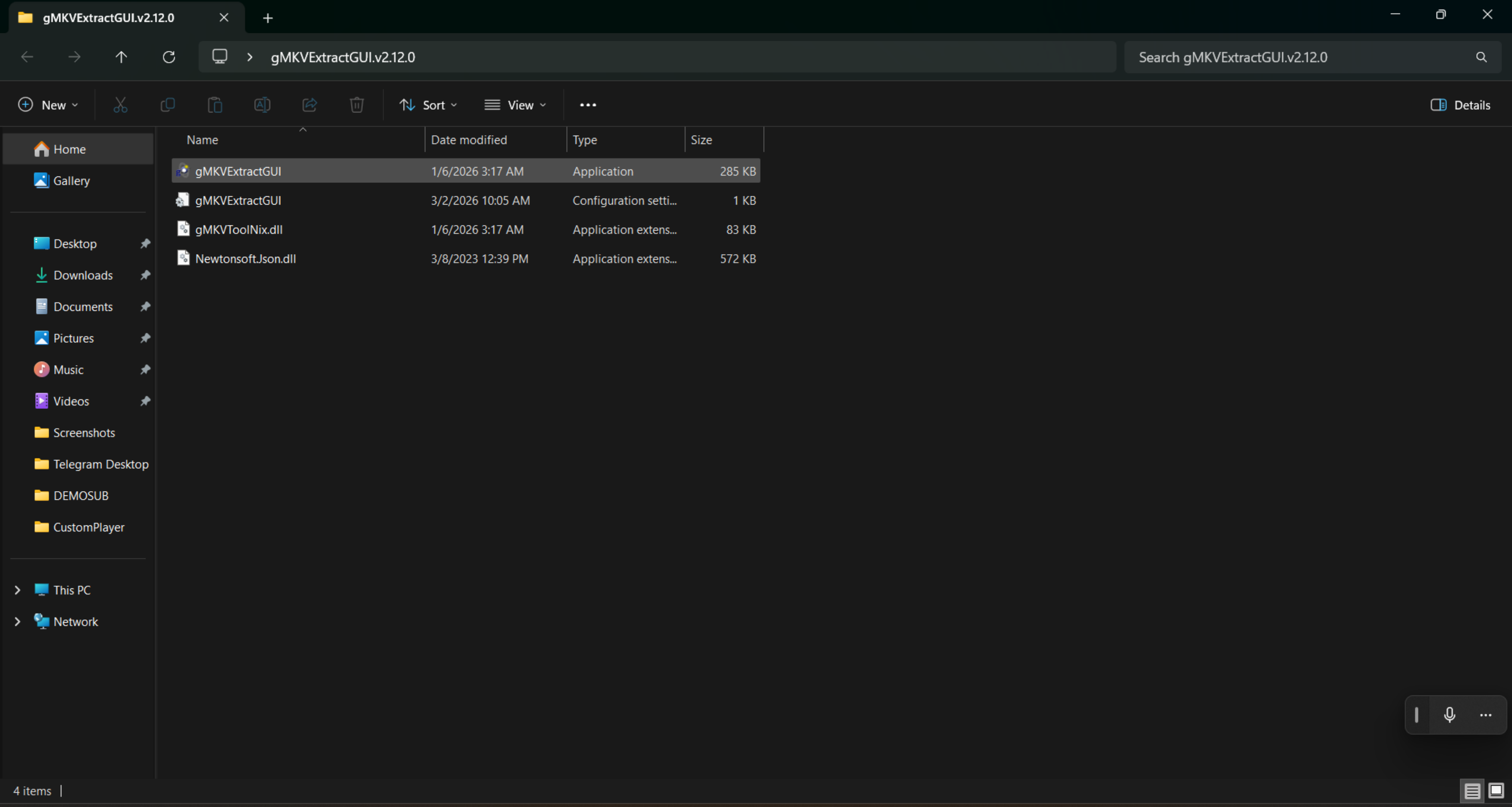
Step 1
Download gMKVExtractGUI and unzip the file. Open the folder and
double-click the application file to launch it.
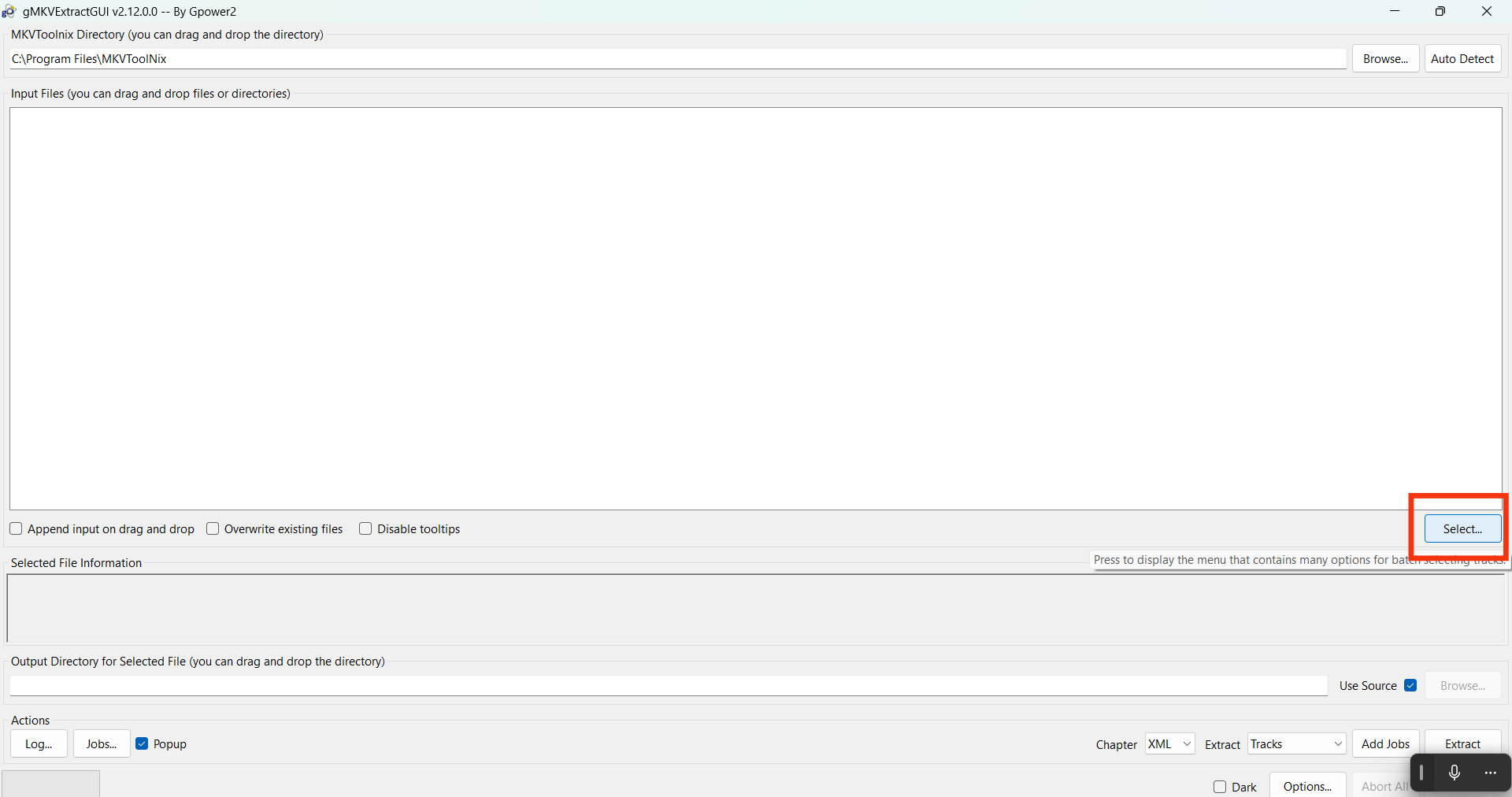
2
Step 2
Once the app opens, click on the "Select" button to begin.
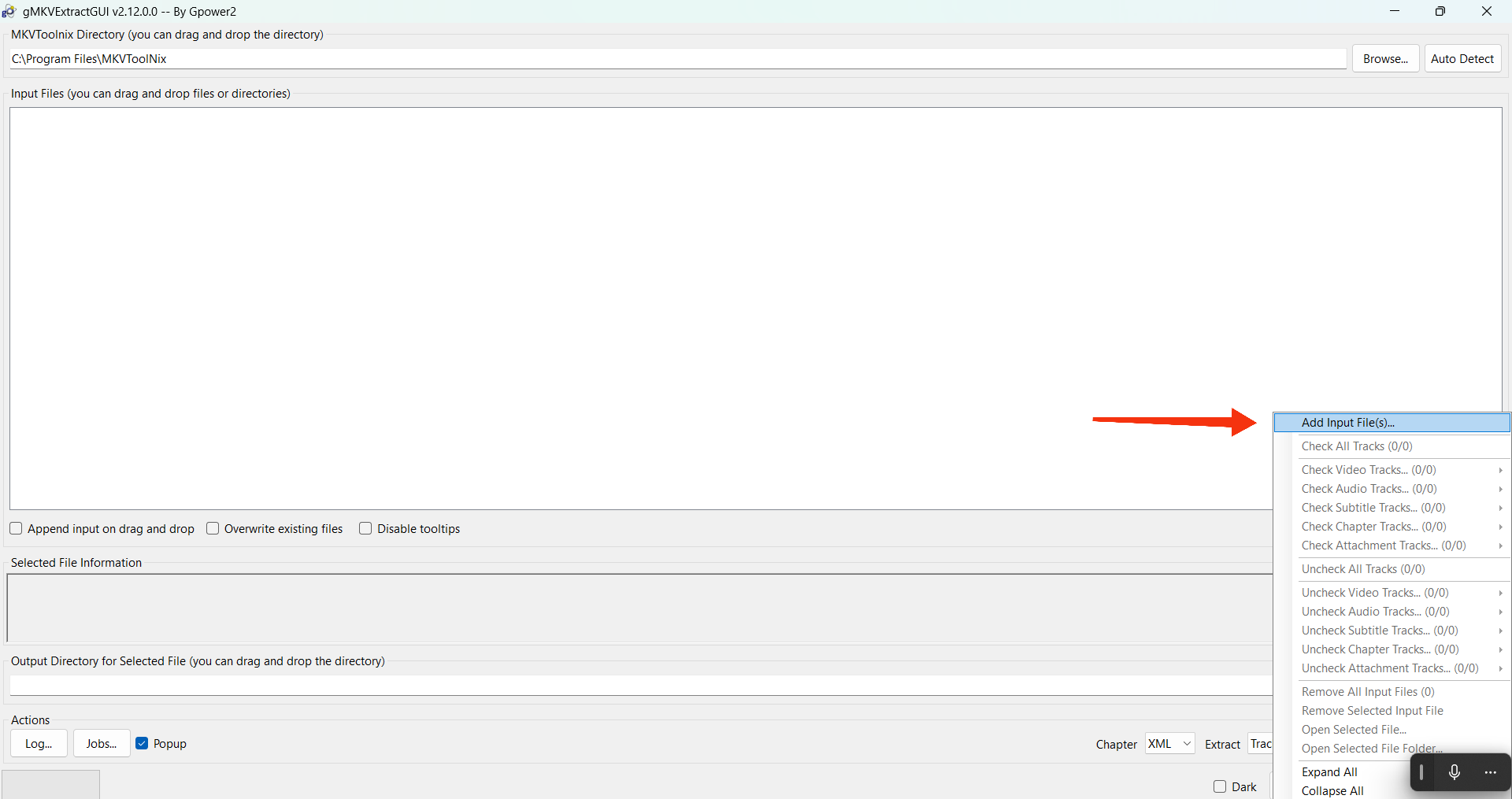
3
Step 3
From the menu, choose "Add Input File(s)" to load your video.
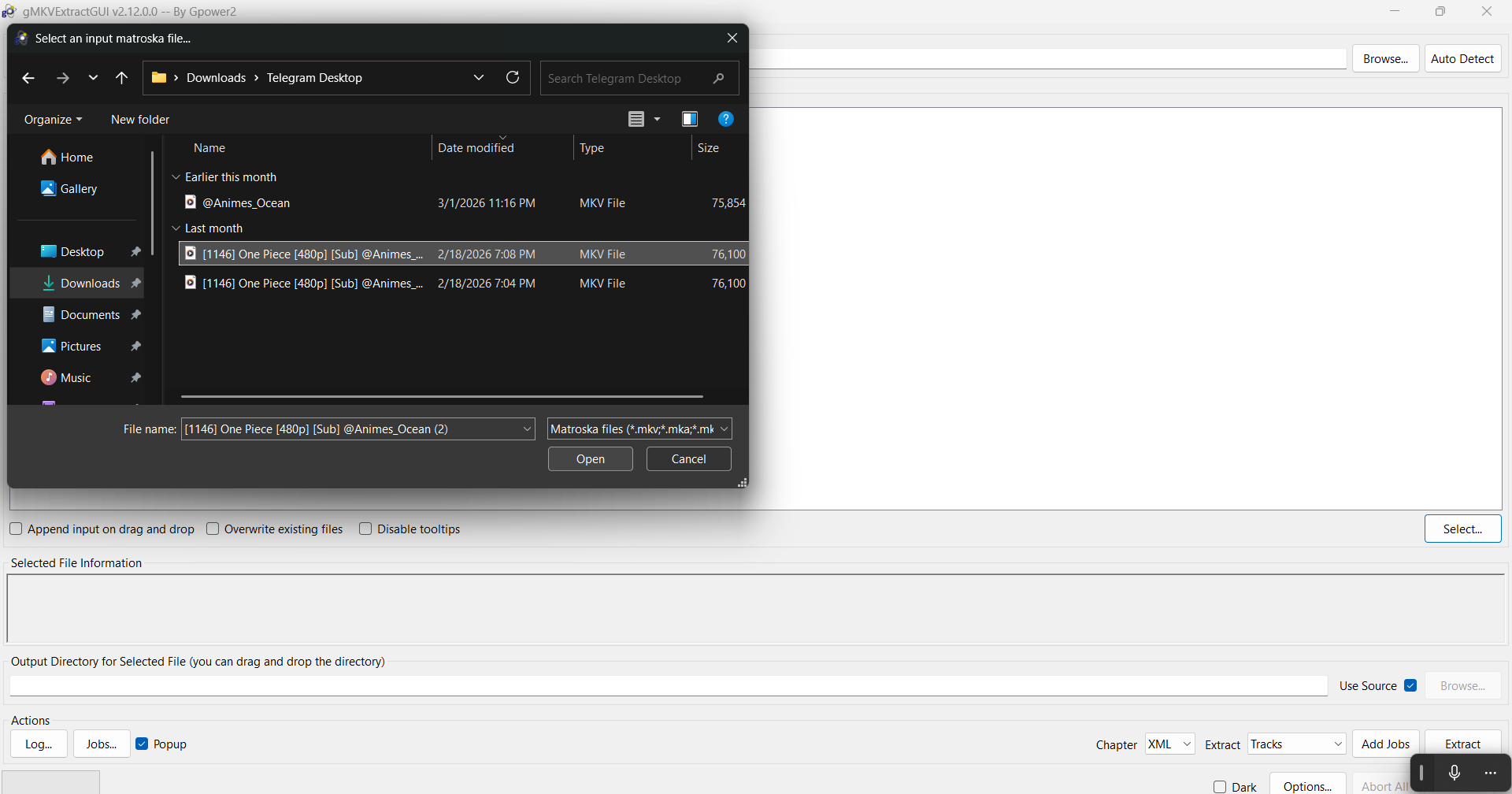
4
Step 4
Browse your device and select the video file from which you want
to extract subtitles.
5
Step 5
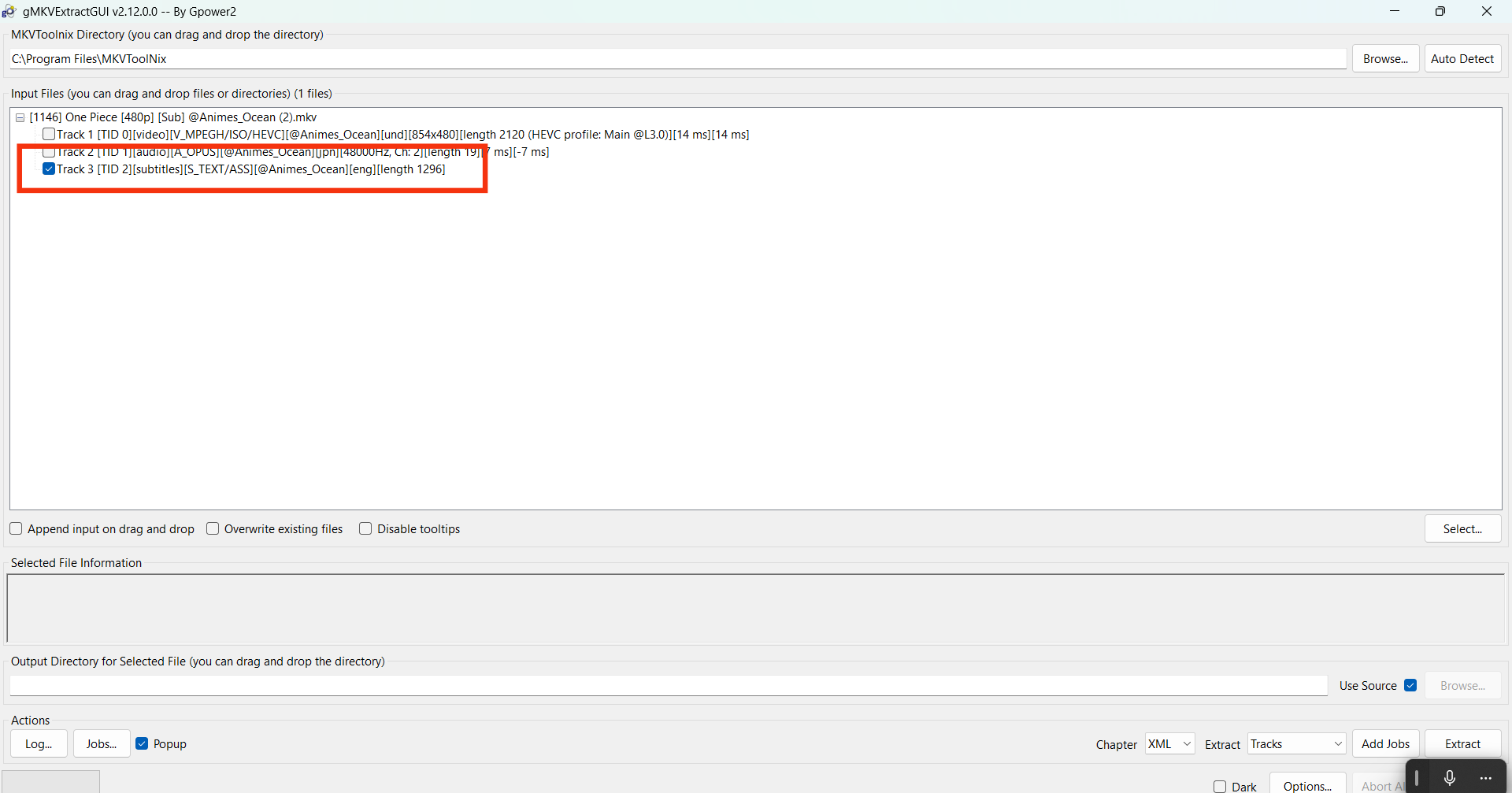
You'll see a list of tracks. Select the subtitle track you want —
check the language, don't just trust the position.
6
Step 6
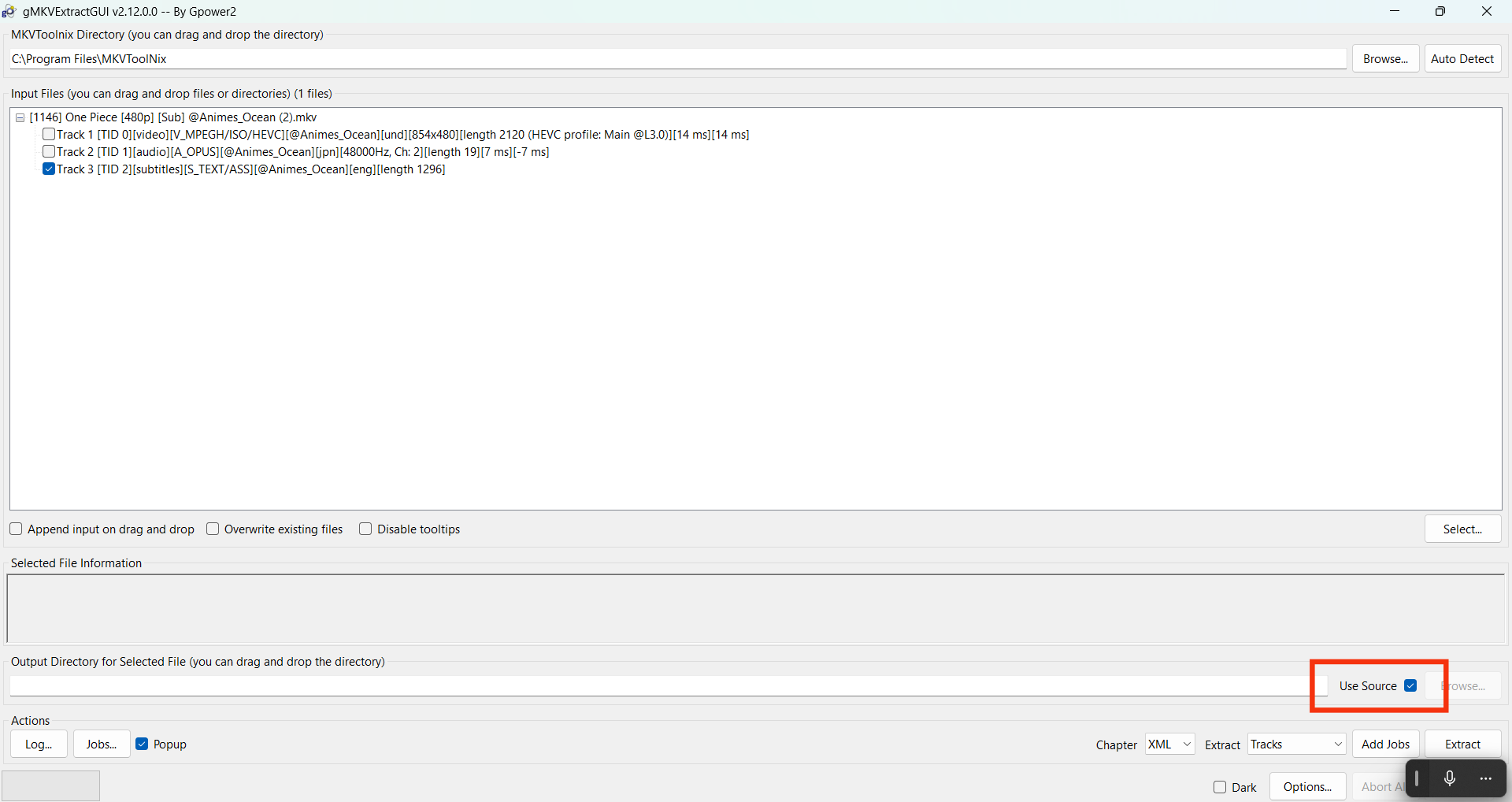
Make sure "Use source directory" is checked so the extracted file
saves in the same folder as your video.
7
Step 7
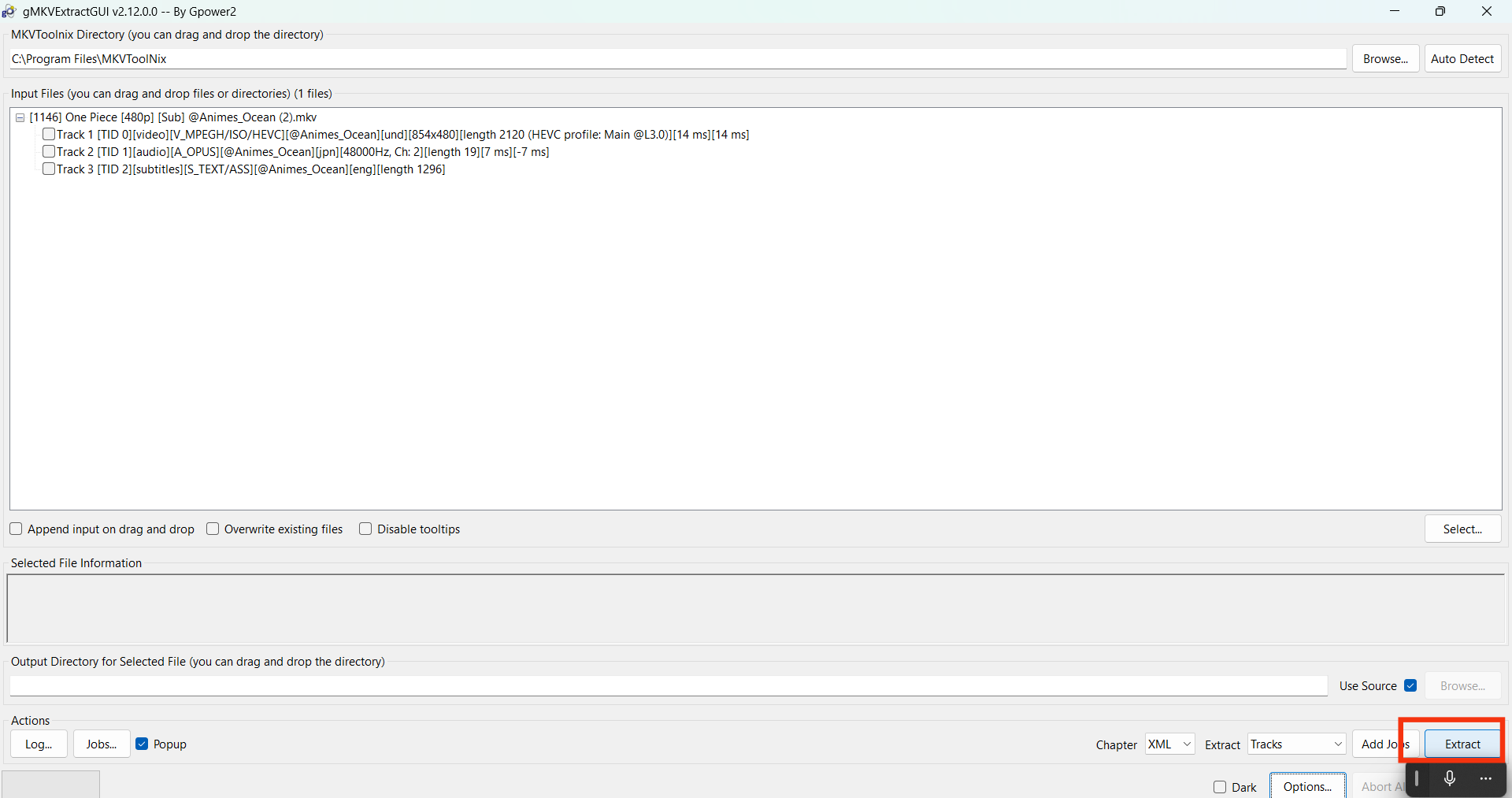
Click the "Extract" button to begin the process.
8
Step 8
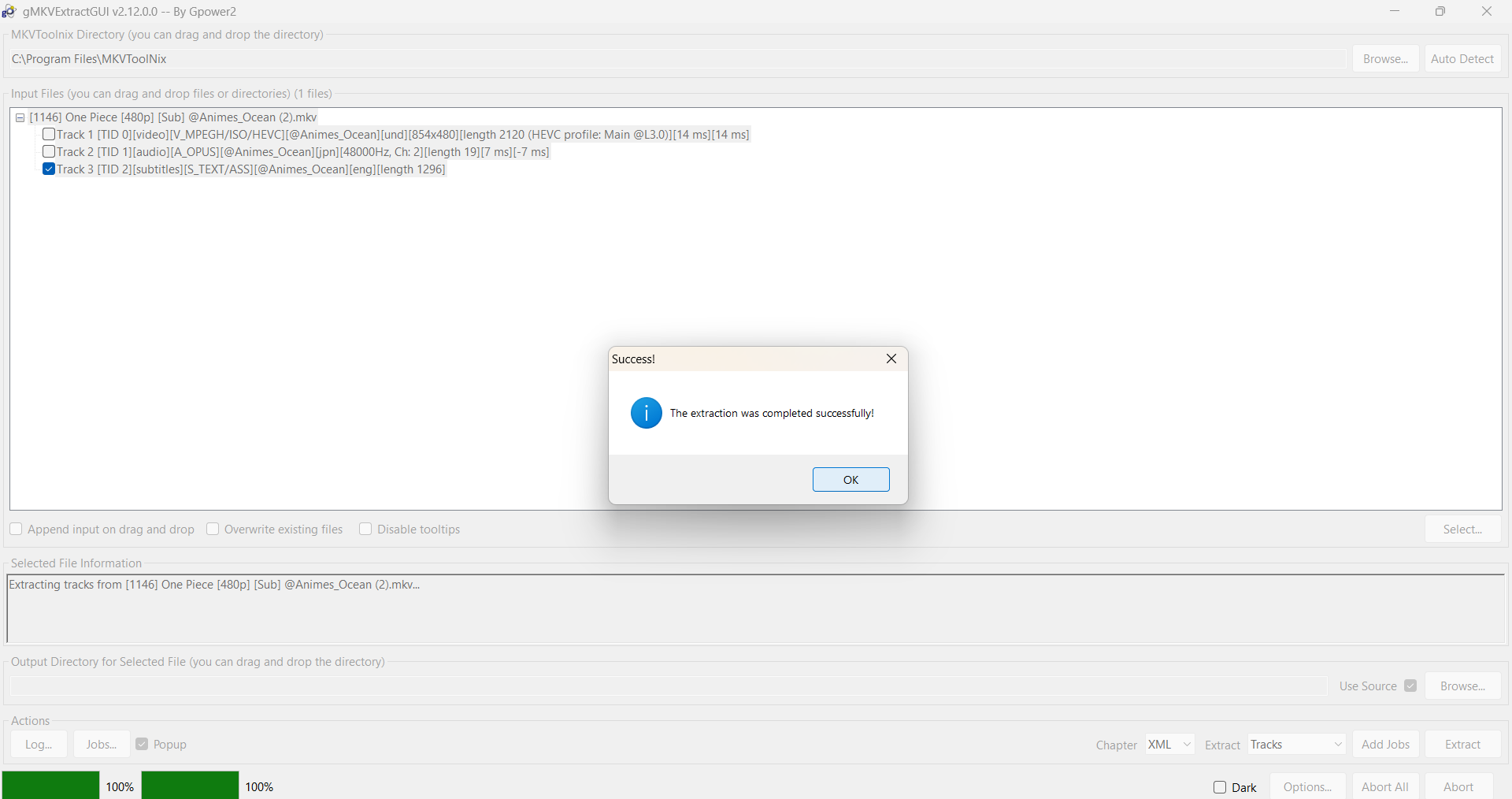
Done! Your subtitle file is now saved and ready to be loaded into
SUBSpeak.
1
Step 1
Open the MKVExtract tool.
2
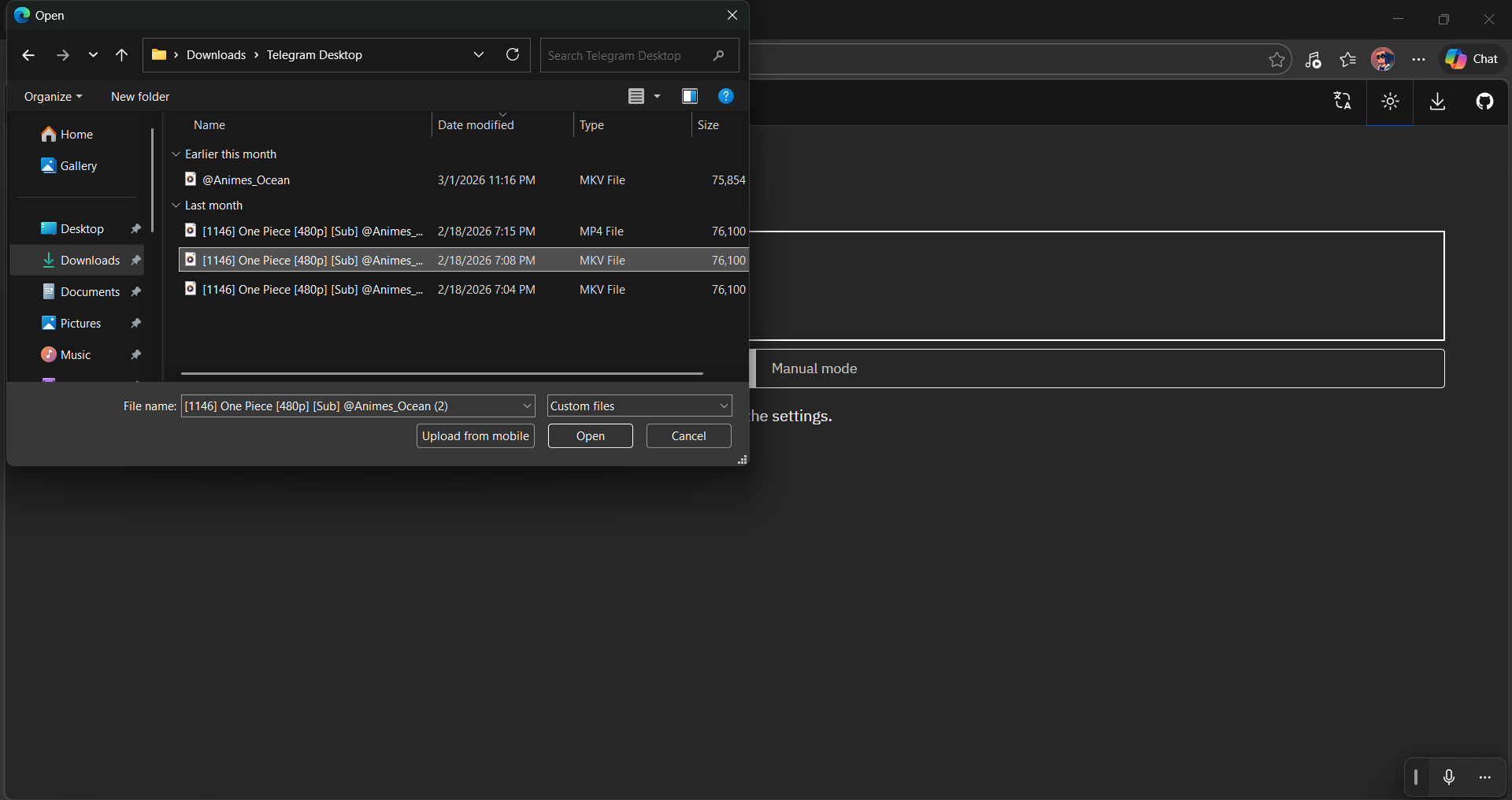
Step 2
Click the "Add File" button and browse to select your video file.
3
Step 3
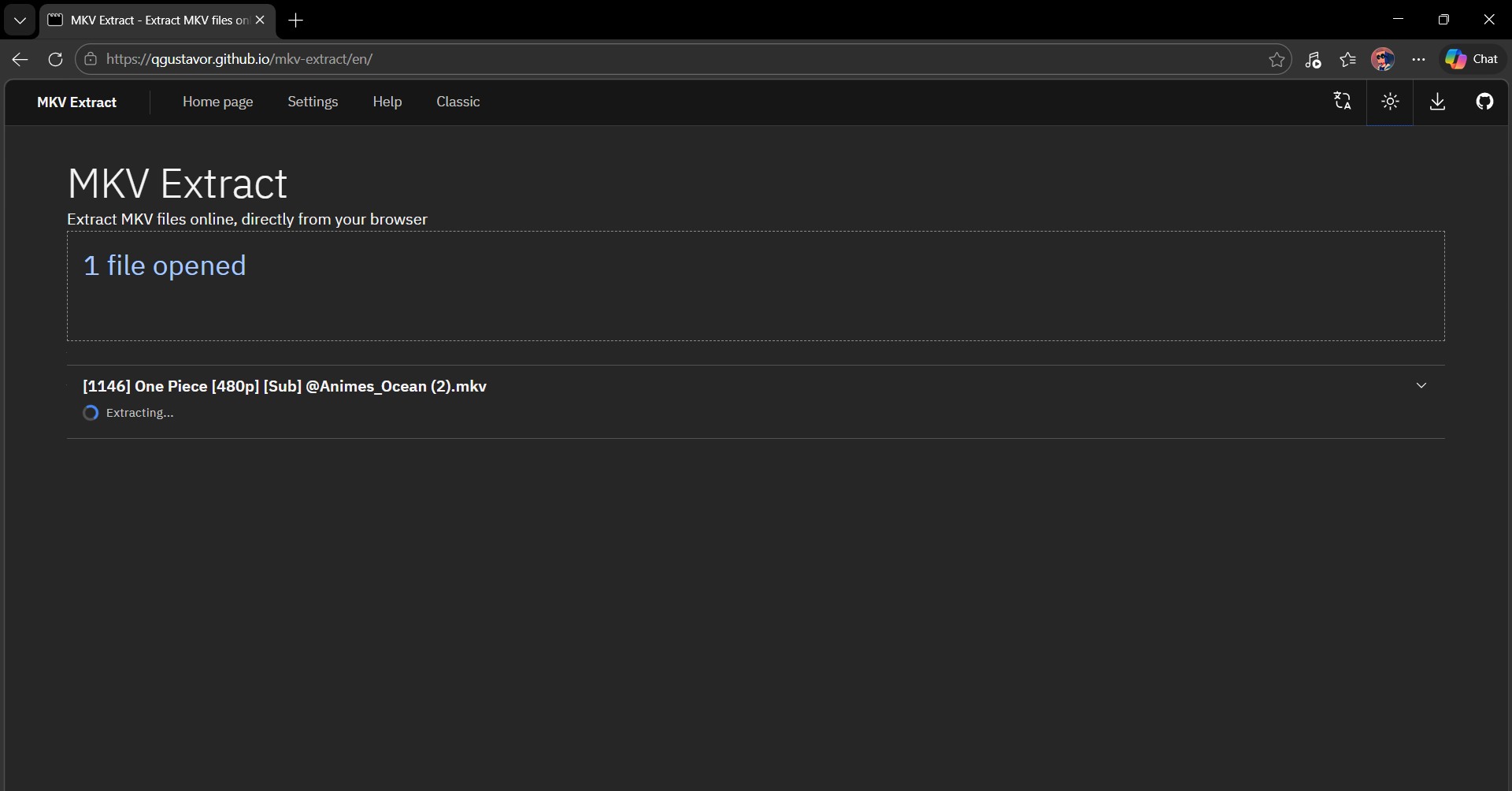
Once loaded, the tool will process the file and automatically
extract the available subtitle tracks.
4
Step 4
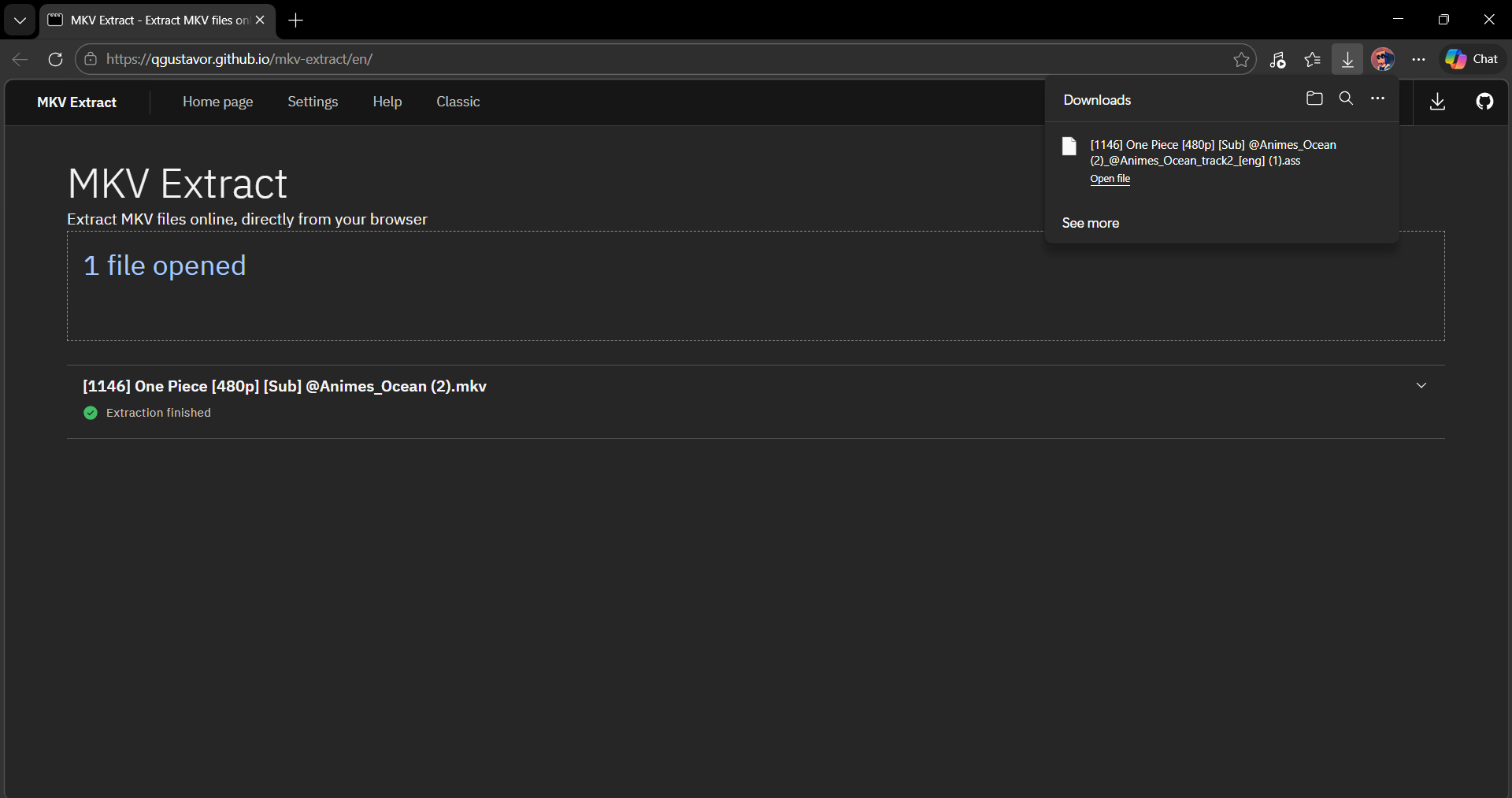
After extraction, your subtitle file is saved and ready to load
into SUBSpeak.
Text-to-Speech
TTS may not work if it's not enabled, no voice is selected, or the browser has
blocked audio. Try clicking Play again or selecting a different voice. Use Chrome or Edge for best TTS
reliability.
Use the Voice selector in the subtitle panel. Available voices
depend on your OS. For a different language, select a matching voice — or install additional voices
through your system settings if needed.
Yes — use the Speed slider. SUBSpeak also has built-in Dynamic
Speed Adjustment: it automatically speeds up slightly for longer subtitle lines to prevent cut-offs
and keep everything in sync.
This depends on your browser and installed system voices. Most major languages
are supported. Check the Voice selector — if your language is missing, install additional voices from
your device's language settings.
Browser lag: Click any subtitle line in the panel to call TTS
again and resume.
Long dialogue: SUBSpeak's Dynamic Speed Adjustment handles this automatically. You can also use the Speed slider to adjust manually.
Long dialogue: SUBSpeak's Dynamic Speed Adjustment handles this automatically. You can also use the Speed slider to adjust manually.
Basic TTS may work offline depending on your browser. Locally installed system
voices work without internet. More advanced voices may require a connection.
Controls & Features
The Delay slider adjusts when subtitles appear relative to the video timestamp.
Positive = later, Negative = earlier. It affects both the subtitle display and TTS timing.
Yes. Adjust subtitle size using the Font Size slider. The player also has
subtitle style settings for additional display customization.
Privacy & Security
No. SUBSpeak works entirely locally in your browser. Your files and all
processing stay on your device. Nothing is ever uploaded.
Yes — everything runs in your browser. No backend, no server-side processing,
no database. Even FFmpeg extraction runs as WebAssembly inside your browser tab.
No personal data is stored. Only your local app settings (speed, voice, etc.)
are saved in your own browser's local storage — this never leaves your device.
Completely safe. Files are loaded locally and never uploaded. SUBSpeak has no
backend and no analytics.
Can't find what you're looking for?
Send us a message and we'll get back to you as soon as possible.